Last Updated on January 28, 2025 by Bestusefultips
Here’s how to customize lock screen in Samsung S25 Ultra, S25+, S25 Edge, and S25. When you lock your Samsung phone, you can see different lock screen settings like clock style, change wallpaper on lock screen, add widgets to lock screen, add lock screen app shortcuts, show or hide notification from lock screen, add text message or number to lock screen, etc. Let’s see how to change lock screen settings on Samsung Galaxy S25, S25 Plus, S25 Edge, and S25 Ultra devices (One UI 7.0).
Read More:
How to Customize Lock Screen on Samsung Galaxy S25, S25 Plus, S25 Edge, S25 Ultra
You can customize Samsung S25 lock screen settings using below-given settings.
Step 1: Long-press on the blank area of home screen and tap Wallpaper & style.
Step 2: Tap Lock screen wallpaper (Left Side).
Step 3: Tap Clock style.
You can see below-given customization on lock screen to your Samsung S25 series.
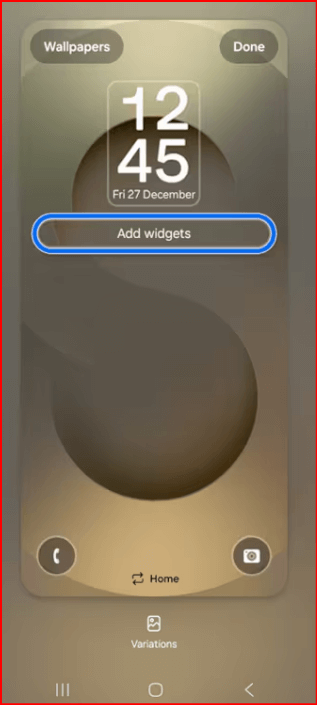
Change Wallpaper on Lock Screen
Tap Wallpaper at the top left corner and set wallpaper on lock screen, home screen, or dynamic lock screen wallpaper. Choose a photo from your phone gallery or create AI wallpaper on Samsung S25 series.
Settings > Wallpaper & style > Tap Lock screen wallpaper > Wallpapers > Select a category > Choose a wallpaper > Done at the top right corner.
Change Lock Screen Clock Style
You can change clock style, clock color, and clock font using this in your Samsung S25 Series.
Add Widgets to Lock Screen
Add your favorite widgets from the list like weather, calendar, battery, clock, etc.
Settings > Wallpaper & style > Tap Lock screen wallpaper > Add Widgets > Select the Widgets you want to add > Done to apply it.
Show or Hide Content on Lock Screen
Show all notification content in your phone. You can hide notification from lock screen or only show app icon in the lock screen.
Add Lock Screen App Shortcuts
Quickly access your favorite app from left shortcut or right shortcut to your Samsung Galaxy S25 series.
Settings > Wallpaper & style > Tap Lock screen wallpaper > Tap Left shortcut > Select the App from the list
Settings > Wallpaper & style > Tap Lock screen wallpaper > Tap Right shortcut > Select the App from the list
Step 4: Change above given settings to your Samsung S25 Ultra lock screen.
Step 5: Lock your Samsung Galaxy S25 Series and see all changes.
Do you customize your Samsung phone’s lock screen or use default lock screen settings? Please, tell us in the below comment section.