Last Updated on February 17, 2026 by Bestusefultips
If your phone is lagging, freezing, or running slowly, restarting can quickly resolve many minor issues. Here’s how to restart Galaxy S25 using different methods: The side button settings, the power button icon in the Quick Settings menu, and the side & volume down keys. See the methods below to restart Samsung S25, S25 Plus, S25 Edge, S25 FE, and S25 Ultra devices.
Read More: How to Power Off Samsung Galaxy
How to Restart S25 Ultra, S25 Plus, S25 Edge, S25 FE, S25: 4 Methods
Easy to restart or force restart Samsung Galaxy S25 devices using the settings below.
Method 1: Restart Using Side Button + Volume Down (Fastest Way)
- Press and hold the Side Button + Volume Down together
- Hold for 2–3 seconds
- When the Power Menu appears, tap Restart
- Tap Restart again to confirm
Your Galaxy S25 will turn off and automatically turn back on.
Method 2: Restart from Quick Panel
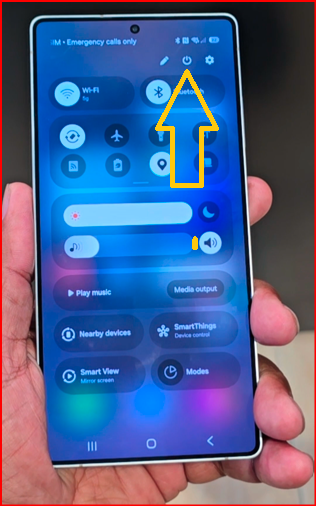
- Swipe down from the top of the screen
- Swipe down again to expand Quick Settings
- Tap the Power icon (top-right corner)
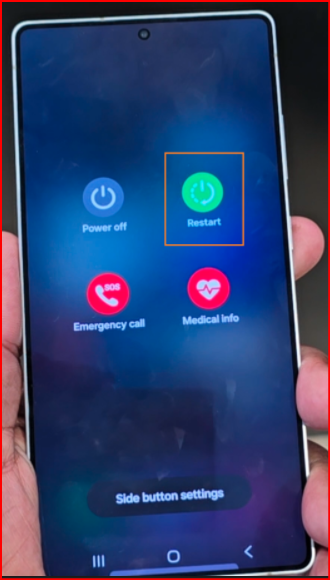
4. Select Restart
5. Again, tap the Restart button to restart your Samsung Galaxy.
This method is useful if your side buttons aren’t working properly.
Method 3: Change Side Button to Display Power Menu
If holding the Side button opens Bixby instead of the power options:
- Open Settings
- Tap Advanced features
- Select Side button
- Under “Press and hold,” choose the Power off menu
Now you can press and hold the Side button to restart.
Method 4: How to Restart Samsung S25 Ultra Using Gemini
- Launch Gemini, then say “Restart the phone“.
- Tap on Restart in the Menu.
- Tap again to restart your phone.
How to Force Restart (If Phone Is Frozen)
If you’re facing an unresponsive screen:
- Press and hold Side Button + Volume Down for 8–10 seconds
- The phone will automatically restart
This is helpful when the device is stuck or not responding.
When Should You Restart Your S25?
Restarting is useful when:
✔ Phone is slow or lagging
✔ Apps are crashing or freezing
✔ Network issues occur
✔ After installing updates
Restarting clears temporary glitches and refreshes your phone’s OS performance.
Final Thoughts
Restarting the Samsung Galaxy S25 is simple and takes just a few seconds. Whether you use the button shortcut or the Quick Panel method, regular restarts can keep your device running smoothly.