Last Updated on March 6, 2026 by Bestusefultips
Are you facing WiFi issues on your Samsung Galaxy S26 series? If your Samsung Galaxy S26 Ultra, S26+, or S26 won’t connect to WiFi, keeps disconnecting, or shows “Connected but no internet,” this complete troubleshooting guide will help you fix it quickly.
Whether you’re dealing with slow speeds, random drops, or WiFi not turning on at all, follow these proven solutions step-by-step.
Read More: How to Fix Bluetooth Connectivity Issues on Samsung Phone
Restart Your Phone (Quick Fix)
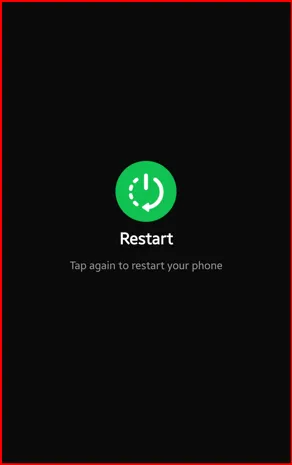
Before trying advanced solutions, restart your phone.
How to restart:
- Swipe down the notification panel twice and tap the Power button icon.
- Tap Restart.
- Tap again Restart to restart your phone.
- Wait for the phone to reboot and reconnect to WiFi.
This fixes most temporary software glitches.
Turn WiFi Off and On
- Swipe down to open Quick Settings.
- Turn WiFi OFF.
- Wait 10 seconds.
- Turn it back ON and reconnect.
Sometimes the WiFi module just needs a refresh.
Restart Your Router
If other devices are also having issues:
- Unplug the WiFi router.
- Wait for 50-60 seconds.
- Plug it back in.
- Wait for a full reboot.
- Reconnect your Samsung device.
This fixes network-side problems.
Forget and Reconnect to WiFi Network
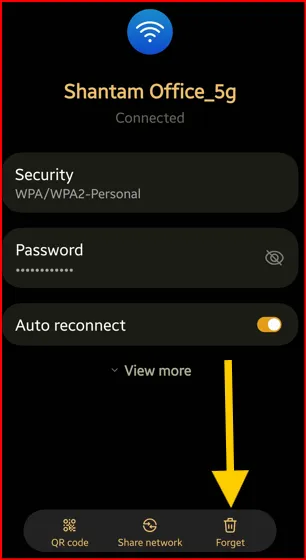
If your phone says “Connected but no internet”:
- Go to Settings > Connections > WiFi
- Tap the Settings gear icon of your connected network.
- Tap Forget at the bottom right.
- Re-enter the WiFi password and reconnect.
Read More: How to Fix No Internet Connection Issue on Samsung Galaxy
Reset WiFi Settings
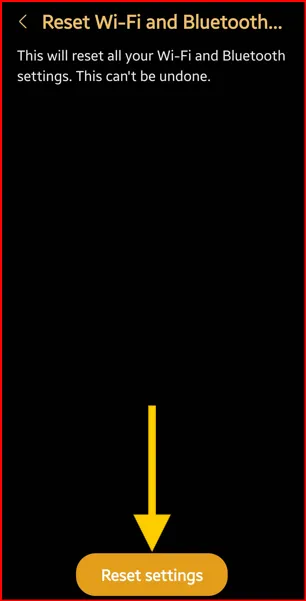
If WiFi keeps disconnecting:
- Open Settings
- Tap General Management
- Scroll down and tap Reset at the bottom.
- Tap Reset Wi-Fi and Bluetooth settings.
- Tap Reset settings to confirm it.
This will remove saved WiFi passwords and Bluetooth device settings.
Check for Software Updates
Samsung frequently releases updates to fix connectivity bugs.
- Go to Settings
- Tap Software Update
- Tap Check for Updates
- Select Download and Install
Make sure your S26 series is running the latest version of One UI (8.5).
Disable Smart WiFi Switching
Sometimes Smart Network features interfere with WiFi stability.
- Go to Settings > Connections > WiFi
- Tap the three dots (⋮) at the top right
- Tap Intelligent WiFi
- Disable:
- Switch to mobile data
- WiFi power saving mode (temporarily)
Test your connection again.
Boot in Safe Mode
If a third-party app is causing WiFi problems:
- Press and hold the Power button (Side Button) to access the power menu.
- Tap and hold Power Off until you view the safe mode icon
- Tap Safe Mode
- Check your WiFi connection
If WiFi works in Safe Mode, uninstall recently installed apps one by one until you fix Samsung S26 WiFi issues.
Factory Reset (Last Option)
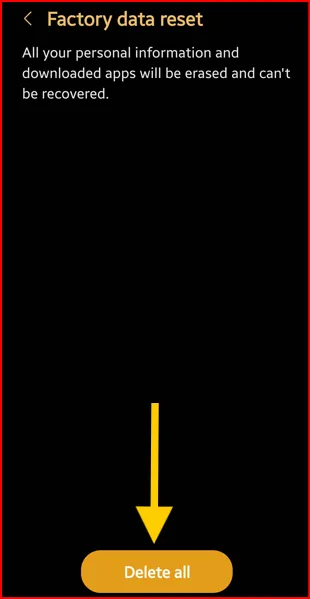
If nothing works:
- Back up your Samsung S26’s data.
- Go to Settings > General Management > Reset
- Tap Factory Data Reset
- Tap Reset
- Unlock your device
- Tap Delete all
This will restore your device to default settings.
Possible Hardware Issue
If WiFi:
- Won’t turn ON at all
- Shows constant “Error”
- Disconnects even after reset
It may be a hardware problem. Visit an authorized Samsung service centre
Why Is WiFi Not Working on Samsung Galaxy S26?
Common causes include:
- Software bugs
- Corrupt network settings
- Router issues
- Outdated firmware
- Third-party apps conflict
- Hardware damage
Final Thoughts
Most WiFi problems on the Samsung Galaxy S26 Ultra, S26+, and S26 can be fixed with a simple restart or network reset. If you follow all the steps above, your connection should be stable again.
If you’re still having issues, consider contacting Samsung Support or your Internet Service Provider.
Frequently Asked Questions (FAQs):
Why does my Galaxy S26 keep disconnecting from WiFi?
It may be due to power-saving features, router problems, or outdated software.
Why is WiFi connected but no internet?
Your router may not be providing internet access. Restart the router or contact your ISP.
How do I fix slow WiFi on Samsung Galaxy S26?
Move closer to the router, reset network settings, disable VPN, or switch to 5GHz band.
If this guide helped you fix your WiFi issue, bookmark this page and share it with others facing the same problem!