Last Updated on March 6, 2026 by Bestusefultips
Is your internet not working on your Samsung Galaxy S26 series? Whether you’re using WiFi or mobile data, slow speeds, WiFi connected but no internet, dropped connections, or “No Internet” errors can be frustrating.
This step-by-step guide will help you quickly and easily fix internet connection issues on your Samsung Galaxy S26 Ultra, S26+, and S26.
Common Internet Problems on Samsung Galaxy S26
You might notice:
- WiFi connected, but no internet
- Mobile data is not working
- Apps not loading
- Internet Slow
- Frequent disconnections
- “No network connection” error
Let’s fix them step by step.
Read More: How to Fix WiFi Not Working on Samsung Galaxy S26 Series
Restart Your Device
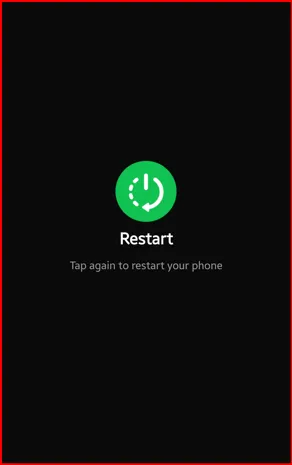
Most temporary internet issues are fixed with a simple restart.
How to Restart:
- Press and hold Power + Volume Down
- Tap Restart
- Tap Restart again to reboot
This refreshes your phone’s network services.
Toggle Airplane Mode
This resets all wireless connections instantly.
- Swipe down to open Quick Settings
- Turn Airplane Mode ON
- Wait 30 seconds
- Turn it OFF
Test your internet again.
Check Your WiFi Connection
If using WiFi:
- Make sure your router is working
- Restart your router (unplug for 60 seconds)
- Try connecting another device to confirm the internet is active
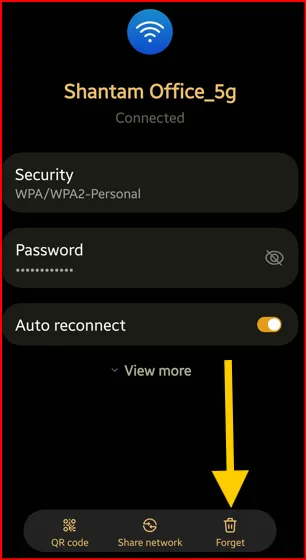
If WiFi shows “Connected but no internet”, forget the network:
- Go to Settings > Connections > WiFi
- Tap the Settings gear icon of your connected network
- Tap Forget
- Reconnect and enter the password
Check Mobile Data Settings
If mobile data isn’t working:
- Go to Settings > Connections > SIM manager
- Tap Mobile Networks
- Make sure Mobile Data is ON
Also ensure:
- You have an active data plan
- You’re in a coverage area
- Check the mobile Data limit
Reset Network Settings (Very Effective Fix)
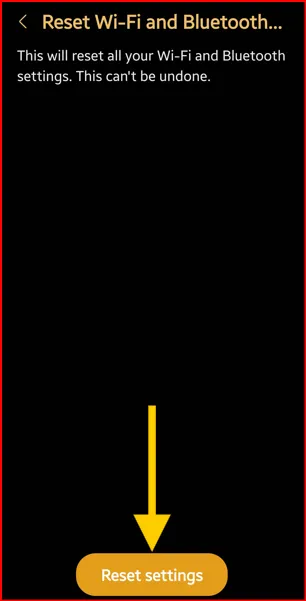
If the internet keeps dropping:
- Open Settings
- Tap General Management
- Select Reset
- Tap Reset Mobile network settings > Reset settings > Go back
- Tap Reset WiFi & Bluetooth settings > Reset settings
- Confirm
This removes saved WiFi networks, Bluetooth devices, and VPN settings.
Check for Software Updates
Samsung regularly fixes network bugs with updates.
- Go to Settings
- Tap Software Update
- Tap Check for updates
- Select Download and Install the update if available for your Samsung phone
Install any available updates and restart the phone.
Disable VPN or Proxy
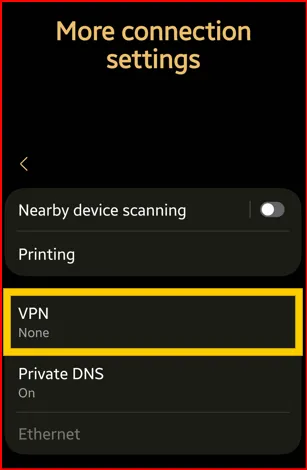
If you’re using a VPN:
- Turn it OFF temporarily: Settings > Connections > More connection settings > VPN > Choose None
- Check if the internet works normally
VPN apps can sometimes cause slow or blocked internet connections.
Check APN Settings (For Mobile Data Issues)
If mobile data still isn’t working:
- Go to Settings > Connections > Mobile Networks
- Tap Access Point Names (APN)
- Make sure the correct APN is selected (check with your carrier, like Verizon, AT&T, or T-Mobile)
You can reset the APN to the default if needed.
Boot into Safe Mode
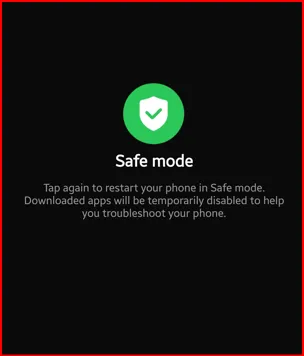
A third-party app may be interfering.
- Press and hold the Power button
- Long-press the Power Off until view the Safe mode icon
- Tap the Safe Mode
- Check your internet connection
If it works in Safe Mode, uninstall the recently installed apps on your device.
Factory Reset
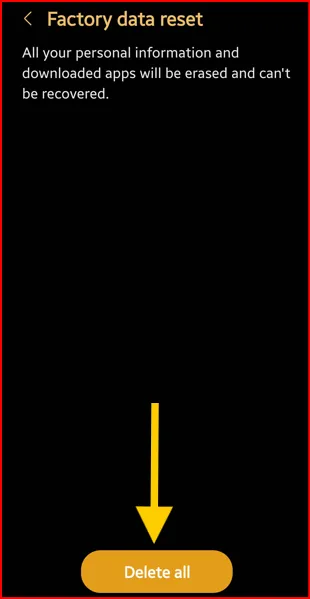
If nothing fixes the issue:
- Make sure to Backup your important data
- Go to Settings > General Management > Reset
- Tap Factory Data Reset
- Tap Reset
- Unlock your phone
- Tap Delete all to Confirm
This restores your phone to its original settings.
Why is the Internet Not Working on Samsung S26 Series?
Common reasons include:
- Weak network signal
- Corrupt network settings
- Carrier outage
- Router issues
- SIM card issue
- Outdated software
- App conflicts
When to Contact Support
You should contact Samsung Support or your carrier if:
- SIM is not detected
- No signal bars in the status bar
- WiFi won’t turn ON
- The issue continues after a factory reset
It could be a hardware or carrier-side issue.
Final Thoughts
Internet connection issues on the Samsung Galaxy S26 Ultra, S26+, and S26 are usually caused by minor software or network problems. In most cases, restarting the phone or resetting network settings solves the issue.
Follow this troubleshooting guide step-by-step, and your Galaxy S26 should be back online in minutes.
FAQs:
Why is my Galaxy S26 connected to WiFi but has no internet?
Your router may not be connected to the internet. Restart it or contact your Internet Service Provider (ISP).
Why is mobile data not working on my S26?
Check your data plan, APN settings, and signal coverage.
How do I fix slow internet on the Samsung Galaxy S26?
Move closer to the router, disable VPN, reset network settings, or check the carrier signal strength.
If this guide helped you, bookmark it and share it with other Galaxy S26 users facing internet problems!