Last Updated on January 27, 2025 by Bestusefultips
Do you want to manually reboot to restart Samsung S25 Ultra, S25 Plus, S25 Edge, and S25? In this article, I’ll explain you 3 different methods to restart your Samsung Galaxy S25 series including side button settings, power button icon in quick settings menu, side & volume down keys. Check out below given methods to reboot the Samsung S25, S25+, S25 Ultra, and S25 Edge device.
Restarting your Samsung S25 series helpful to fix several issues like frozen phone, slow down your Samsung phone, app crashes or freezes, etc.
Read More: How to Power Off/Turn Off Samsung Galaxy S25, S25+, S25 Ultra, S25 Edge
How to Restart the Samsung Galaxy S25 Ultra, S25 Plus, S25 Edge
Easy to restart or force restart Samsung Galaxy S25 devices using below settings.
1st Method: Restart your Samsung S25 Series using Power Button in Quick Panel
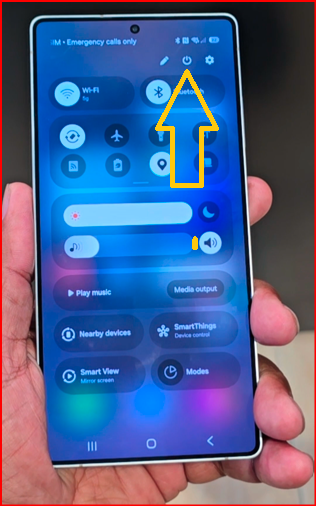
Pull down the notification panel from the top and touch the Power Button icon.
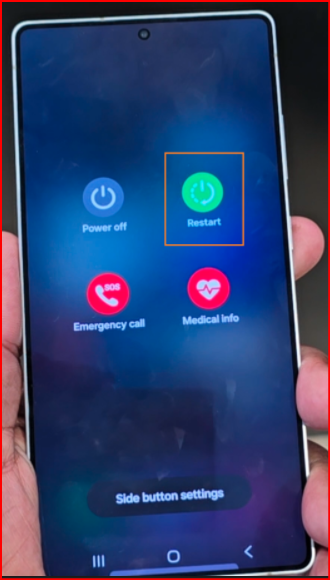
Touch the Restart button in the Power menu.
Again, tap the Restart button to restart your Samsung Galaxy.
2nd Method: Use Side Button (Power Key)
By default, Samsung launch the Bixby as default side button settings. You must change the side key settings on your Samsung Galaxy devices using below settings.
Open the app drawer and touch the Settings app.
Scroll down up to Advanced features and tap on it.
Touch the Side button.
You can see 3 options here: Digital Assistant (Google), Bixby (Default), or Power off menu.
Select a Power off menu in your Samsung S25 series.
Touch & hold the side key to your Samsung Galaxy to launch the power menu and touch the Restart button. Again, tap Restart to restart the phone.
3rd Method: Use Side & Volume down Keys simultaneously
Long-press the side and volume down buttons simultaneously until the power menu view to your Samsung device.
Touch the Restart button while power menu appear.
Touch the Restart again to reboot the Samsung S25 series.
Force Restart Samsung Galaxy S25 Ultra, S25+, S25 Edge, S25
Long-press the volume down and side key simultaneously until your Samsung phone’s screen turn off and automatically turn on your phone within 10-15 seconds.
Which of the above-given method do you use to restart the Samsung phone? Tell us in the below comment section.