Last Updated on February 16, 2026 by Bestusefultips
Samsung Accidental Touch Protection is a smart feature built into Samsung Galaxy devices that prevents unintended screen touches when your phone is inside your pocket, bag, or in a dark place. It helps avoid accidental calls, unwanted actions, or app openings. This Accidental touch Samsung feature is available on devices running One UI (8.5/8/7 & older), including Galaxy S, A, M, and Fold series.
What Is Accidental Touch Protection Samsung Galaxy?
Accidental Touch Protection uses your phone’s proximity and light sensors to detect when the device is in a dark place (such as a bag or pocket).
Read More: Always On Display Settings Samsung Galaxy
When activated:
- The screen stays locked
- Touch input is disabled
- You’ll see a notification: “Accidental touch protection is on”
This prevents:
- Pocket dialing
- Random open app
- Battery drain from screen activity
How to Enable Accidental Touch Protection on Samsung Phone
Follow these steps:
- Open Settings
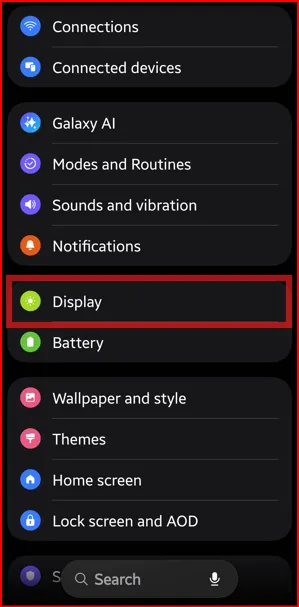
2. Tap Display
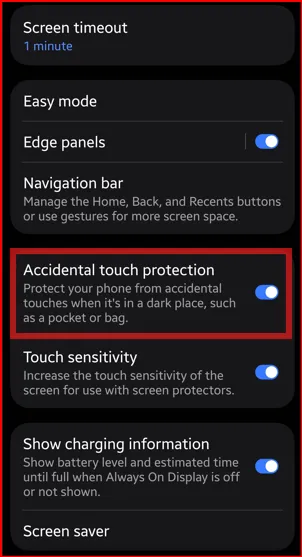
3. Scroll down and turn on Accidental Touch Protection
Read More: Increase Touch Sensitivity on Samsung for Screen Protector
How It Works in Your Real Life
- When your device is in your pocket, and the screen turns on, it detects darkness.
- Touch input is blocked.
- To unlock, swipe the screen as instructed.
It’s especially useful during:
- Walking or traveling
- Keeping the phone in tight jeans or a bag
- Workout sessions
If Accidental Touch Protection Not Working
Try these fixes:
✔ Make sure to turn on
✔ Clean your phone’s proximity sensor area (near the front camera)
✔ Remove screen protectors if thick
✔ Check for Software Update
Does it affect the battery?
No, it actually helps save battery by preventing the screen from waking unnecessarily due to accidental touches.
Final Thoughts
Samsung Accidental Touch Protection is a simple yet powerful safety feature that helps protect your phone from unintended touches. If you often keep your device in your pocket or bag, enabling this setting can prevent accidental calls and save battery life.
FAQs:
How do I activate Accidental Touch Protection Samsung?
To enable Accidental Touch Protection on Samsung phones:
Settings > Display > Accidental touch protection > Make sure to Toggle On
Once enabled, the screen will ignore touches when it detects the phone is in your pocket or in a dark place.
Can I use Accidental Touch Protection with Always On Display?
Yes. Accidental Touch Protection works with Always On Display. The screen will still display AOD information, but it will block accidental touches until the phone is removed from a pocket or dark area.
How do I turn off Accidental Touch Protection on Samsung?
To disable it:
Settings > Display > Accidental touch protection > Turn Off
Turning it off allows normal touch input even when the phone is in a pocket or dark space.
Does Accidental Touch Protection drain battery on Samsung?
No. Accidental Touch Protection uses existing proximity and light sensors already active on your phone, so the battery impact is negligible.
Why isn’t my Samsung screen responding due to Accidental Touch Protection?
If the phone thinks it is still covered or in a dark place, touches remain blocked. Move the phone into light or uncover the top sensor area to unblock the touch sensor.