Last Updated on February 16, 2026 by Bestusefultips
Pixel Notification Dots are small colored notification indicators that appear on the specific app icons when you receive a new notification on your Google Pixel devices. If you’re using a Pixel device, this feature is built into the Pixel Launcher. It helps you quickly identify which apps have unread messages or alerts without opening the quick notification panel.
Let’s explore how notification dots work, how to enable them, and how to customize them on your Google Pixel phone.
Read More:
What Are Pixel Notification Dots?
Notification dots are small circles that appear in the upper-right corner of a Pixel app icon dot when you receive any new messages on your device:
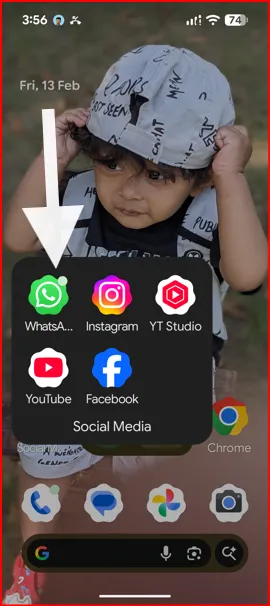
- New messages
- Missed calls
- App updates
Instead of checking every app manually, the dot icon reminds you of new notifications on your device.
How to Enable or Disable Notification Dots on Pixel
Follow these simple steps to your Pixel device:
- Open Settings
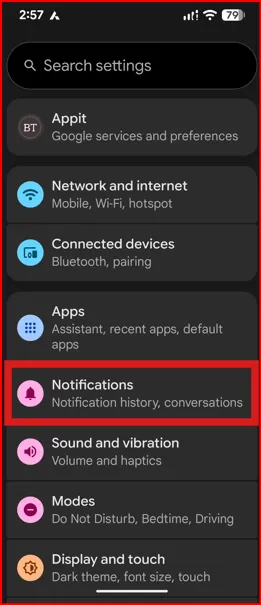
2. Tap Notifications
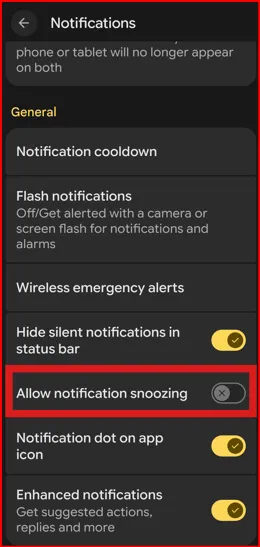
3. Turn Notification dot on app icon On or Off
Once enabled, any app with an unread notification will display a dot on its icon.
How to View Notifications from the Dot
On Pixel devices, tap the app to read the notification.
This feature makes it easier to manage notifications on your Android device without pulling down the notification panel.
Can You Customize Notification Dots Pixel Phone?
On Stock Pixel UI:
- You cannot change the color or size of the dot notification
- They follow the system’s dynamic theme
If you want more customization (color, size, style), you may need:
- Third-party launchers like Nova Launcher
- Custom Android themes (advanced users)
Notification Dots vs Badges Android: Pixel vs Samsung Notification Badges (Numbers)
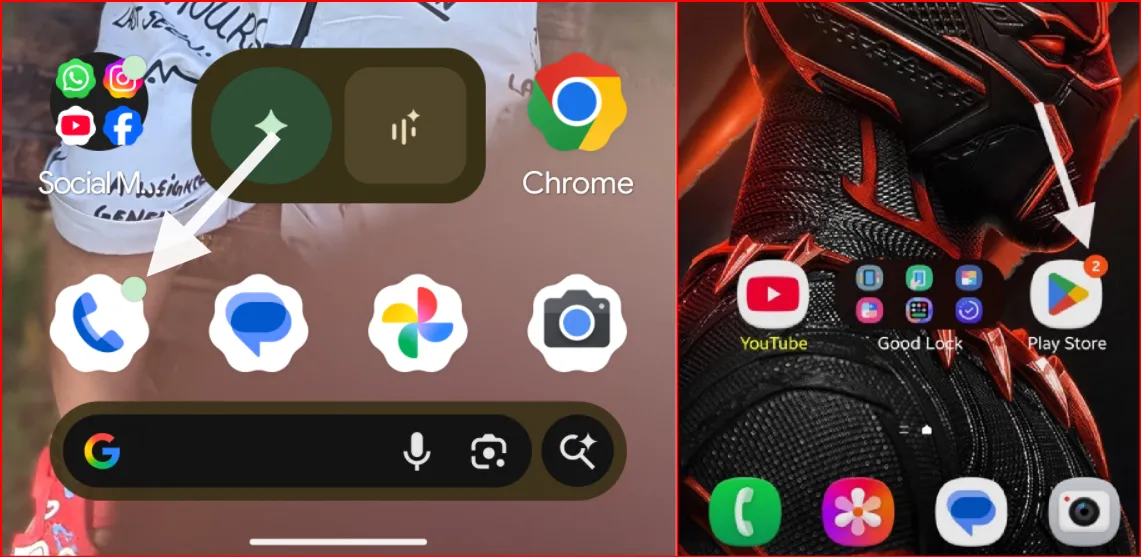
Pixel phones use dots only, not badge numbers like Samsung Galaxy, Xiaomi, etc. (like “5” unread messages).
However, some third-party launchers support numeric badges if you prefer to see the exact number of missed messages.
Why Google Pixel Notification Dots Are Useful
✔ Clean & minimal design
✔ Quick visual alert
✔ Saves time
✔ Matches Pixel’s Material You interface
Troubleshooting: Notification Dots Not Showing?
If Google Pixel notification dots are not appearing:
- Make sure the Notification dot on app icon is On
- Check if app notifications are enabled
- Clear the Pixel Launcher cache
- Restart your Pixel device
Final Thoughts
Pixel Notification Dots are a small yet powerful feature that enhances your daily smartphone experience. If you’re using a Google Pixel device, enabling notification dots can make managing notifications faster and more convenient.
FAQs:
What are notification dots on Pixel phones?
Notification dots are small colored indicators that appear on app icons when you have unread notifications on your Google Pixel device.
How do I turn on notification dots on Pixel?
Go to Settings > Notifications > Notification dot on app icon and toggle them on.
Why are notification dots not showing on my Pixel?
This usually happens when app notifications are turned off, notification dots are disabled, or Do Not Disturb mode is active.
Can I customize the notification dot color on a Google Pixel?
No, Pixel phones use system-controlled colors based on the app icon and Material You theme.
Do notification dots work on all Pixel models?
Yes, notification dots are available on all Pixel phones running Android 12 and newer.
What’s the difference between notification dots and badges?
Notification dots show presence only, while badges display the number of unread notifications, like Samsung One UI.
How do I clear notification dots on the Pixel?
Open the app with the unread messages, or clear the notification panel.
Why do some apps not show notification dots?
The app may not support this feature, or its notifications may be disabled.