Last Updated on February 20, 2026 by Bestusefultips
Android 17 Beta is now available for eligible Google Pixel devices, bringing new performance improvements, a new UI for a more compact menu, and camera upgrades ahead of the official release. If you want to test the latest Android version features early, you can install Android 17 Beta safely using Google’s Android Beta Program or manual flashing methods. Android 17 Beta 1 (CP21.260116.011.B1) update size is 843 MB. This guide explains the easiest and safest way to install Android 17 Beta on your Pixel phone.
Eligible Pixel Devices for Android 17 Beta
Android 17 Beta supports recent Pixel models, including:
- Pixel 10/10 Pro/10 Pro XL/10 Pro Fold
- Pixel 9 / 9 Pro / 9 Pro XL
- Pixel 8 / 8 Pro / 8a
- Pixel 7 / 7 Pro / 7a
- Pixel Fold
- Pixel Tablet
Older Pixel devices typically do not receive Android 17.0
Read More: What’s New in Android 17 Beta 1 for Pixel
Before Installing Android 17 Beta
Before upgrading your Pixel, keep these important points in mind:
- Beta software may contain bugs and stability issues
- Some apps may not work properly
- Reduce the Battery life initially
- Always back up your data before installing
Method 1: Install Android 17 Beta on Pixel via Android Beta Program (Recommended)
This is the easiest and safest method. No data loss.
Step-by-step:
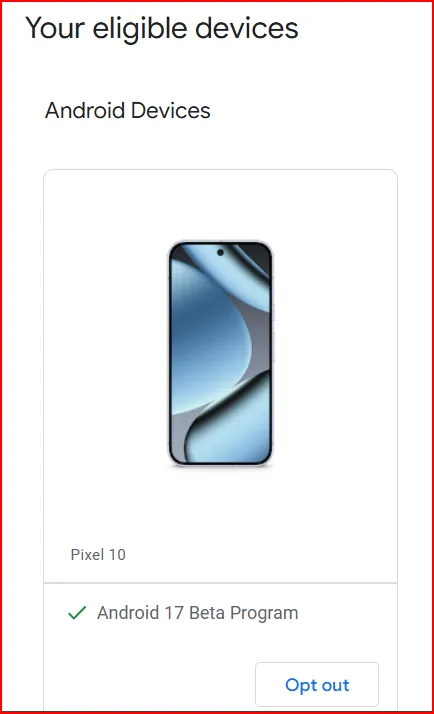
- Open the Android Beta Program on your device
- Sign in with the Google account used on your Pixel
- Tap on View your eligible devices
- Click Opt-in
- Accept beta terms
- On your Pixel:
- Go to Settings > System > Software updates > System update
- Tap Check for update
- Tap Download and install to get Android 17 Beta to your Pixel devices.
- Tap Restart Now
Your Pixel will reboot and install the beta update.
Method 2: Manually Install Android 17 Beta (Advanced)
Use this method if you want early builds or a clean installation
Requirements:
- Computer with Chrome
- USB cable
- Pixel phone
- USB debugging enable
Steps:
- Enable Developer Options: Settings > About phone > Tap Build number 7 times > Go back > System > Developer options
- Enable USB debugging
- Connect the Pixel to the computer
- Open Android Flash Tool website
- Allow browser permissions
- Select Android 17 Beta build
- Click Install
This method may wipe data depending on the options selected.
How to Leave Android 17 Beta
If you want to return to a stable Android:
- Go to the Android Beta Program site
- Click Opt-out
- Install the downgrade update
Downgrading wipes device data.
What You Get in Android 17 Beta
After installing, your Pixel gains:
- Better performance & smoothness
- Camera improvements
- Pixel Launcher customization
- UI polish and animations
Should You Install Android 17 Beta?
Install if you:
- Want new Android features early
- Create Android content or reviews
- Enjoy testing beta software
Avoid if you rely on your Pixel for daily critical use.
Conclusion
Installing Android 17 Beta on Pixel is simple through the Android Beta Program and takes only a few minutes. It’s the safest way to experience Google’s latest Android features before the official release. Just remember to back up your data and expect minor bugs, as beta software is still under development.
FAQs:
When is Android 17 Coming Out?
Android 17 is already in beta – and the final stable release is expected in May–June 2026, with Pixel phones getting it first.