Last Updated on August 26, 2025 by Bestusefultips
WiFi is essential for daily life for all smartphone users, such as quickly surfing the internet, streaming 5G videos, and accessing apps. Sometimes, users encounter WiFi issues such as a connected WiFi network but no internet, a low network signal, or WiFi not working, among others. In this article, I’ll explain all the troubleshooting steps to fix WiFi issues on Google Pixel 10, 10 Pro, 10 Pro XL, and 10 Pro Fold.
Don’t Miss: How to Fix Bluetooth Not Working on Google Pixel 10, 10 Pro, 10 Pro XL
How to Fix WiFi Issues on Pixel 10 Pro XL, 10 Pro, 10: Android 16
Apply the methods given below to fix Google Pixel 10 Wi-Fi connectivity issues.
Step 1: Quick Fixes
Toggle WiFi On/Off: Swipe down the notification panel twice from the top and quickly turn WiFi off, then back on. Alternatively, go to the main Settings app > Network & internet > Internet > Toggle On/Off Use Wi-Fi.
Restart Your Google Pixel 10 Series: Restarting your Pixel device can often resolve temporary software glitches. Easy to restart your phone.
Restart Your Router/Modem: We use a router/modem to use WiFi on our smartphones. Sometimes the problem might be with the network, not the phone. Unplug the WiFi router and modem for 25-30 seconds, then plug them back in and wait for them to restart fully.
Check Router Proximity: Ensure the signal is strong and full. Move closer to the WiFi router.
Check Other Devices: If you’ve any other smartphone or laptop, check if other devices can connect to your WiFi network to determine if the issue is phone-specific or network-wide.
Step 2: Forget and Reconnect to the Network
Access WiFi Settings: To access the WiFi network, go to Settings > Network & internet > Internet.
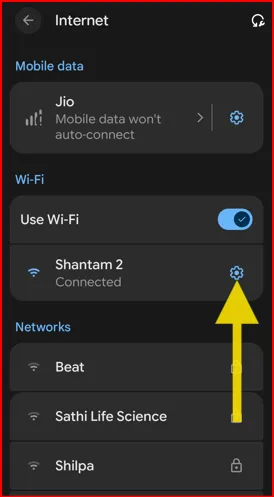
Forget the Network: Tap the “Settings gear icon” next to the WiFi network name you want to remove.
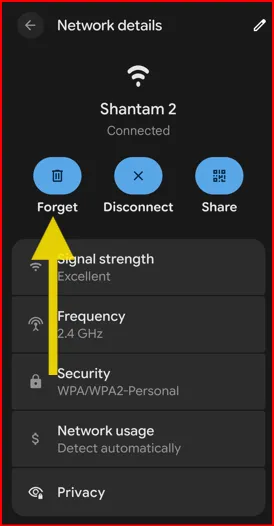
Reconnect to the Network: Select “Forget.” After removing the connected WiFi network, reconnect the network from the list and re-enter your WiFi password.
Step 3: Check for Software Updates
Go to Software Updates: To check for the Pixel system update, go to Settings > System > Software updates.
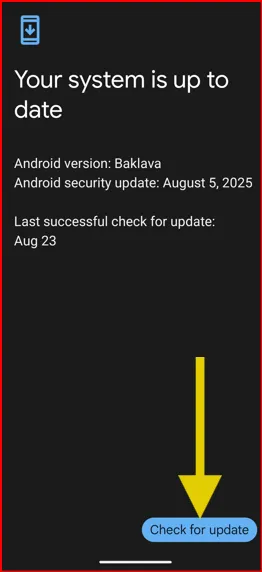
Check for Updates: Check for system updates and install any available Android system updates, as these can sometimes resolve minor connectivity issues.
Step 4: Reset WiFi Network Settings
When to Use: If you’re Pixel devices are facing any WiFi or any other network problems, you will reset Wi-Fi and Bluetooth settings. It will not delete your phone’s personal data, only reset network connections.
Navigate to Reset Options: Go to Settings > System > “Reset options” at the last > Reset Bluetooth & Wi-Fi.

Confirm Reset: Tap “Reset Bluetooth & Wi-Fi” and confirm by tapping the Reset button.
Re-enter Passwords: Re-enter all your WiFi network passwords to enjoy your WiFi connection on Pixel.
Step 5: Safe Mode (Diagnose Third-Party App Causing the Issue)
Enter Safe Mode: You can boot your Google Pixel into Safe Mode using the power menu.
Test WiFi: If your WiFi works correctly in Safe Mode, a recently installed third-party app is likely the cause of the issue.
Exit Safe Mode: Restart the phone to exit Safe Mode.
Uninstall Problematic Apps: Uninstall the recently installed apps one by one until the WiFi issue is resolved.
Step 6: Factory Reset (Last Resort) Google Pixel 10
When to Use: If none of the above-given methods work for you, this is the last way to try. It will remove all data on the phone. Ensure that you back up your important data first before performing a factory data reset.

Navigate to Factory Reset: Go to Settings > System > Reset options > Erase all data (factory reset) > Erase all data.

Confirm and Proceed: Enter your screen lock and confirm it by tapping Erase all data at the bottom right corner.
Important Note: After that, you will need to set up your phone as a new device.
Conclusion:
End the list of possible methods to fix WiFi not working issue on Google Pixel 10 series. If problems persist after applying the methods above, don’t hesitate to get in touch with your internet service provider or Google Support for further assistance.