Last Updated on July 18, 2025 by Bestusefultips
By default, set colour palette and accent color on Samsung Galaxy devices. In this tutorial, I’ll show how to change color palette on Samsung S25 Ultra, S25 Plus, S25 Edge, and S25 devices. You can change the system interface color from wallpaper colors or basic colors list. This color palette apply to your quick settings tiles icons, toggle buttons, or other settings. Also, apply palette to app icons to your Samsung Phone. Let’s see how to change system accent color in Samsung Galaxy S25 Ultra and other S25 series.
Read More: How to Change Lock Screen Wallpaper on Samsung Galaxy S25 Series
How to Change Color Palette on Samsung Galaxy S25 Ultra, S25 Plus, S25 Edge, S25: One UI 7
Step 1: Long-press on the blank space on the home screen.
You can see different settings including Wallpaper & style, Themes, Widgets, or Settings.
Step 2: Tap Wallpaper & style.
Step 3: Tap the Color palette.
You can choose a palette based on colors from your wallpaper or basic colors.
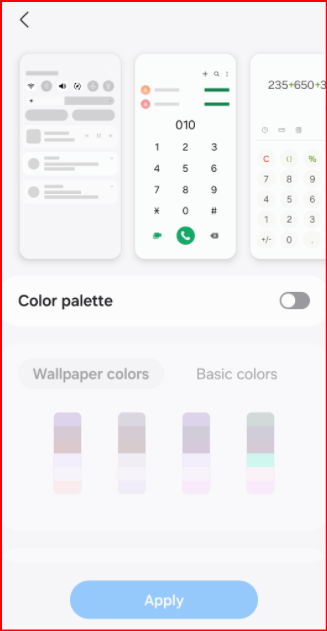
Step 4: Toggle on Color palette.
Two options available to choose your palate color.
Step 5: Tap Wallpaper colors or Basic colors you want to apply as color palette.
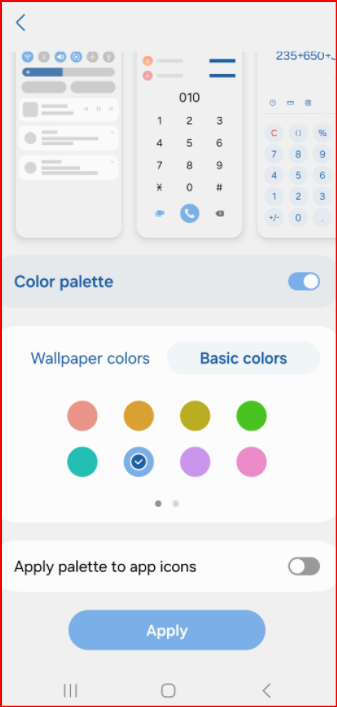
Step 6: Select the color and tap Apply button at the bottom middle.
You can see changes color in quick settings tiles icon, toggle on/off button, brightness icon, etc.
How to Apply Color Palette to App Icons on Samsung Galaxy S25
You can apply your favorite color to app icons in app drawer and home screen to your Samsung Galaxy S25 and other devices.
Settings > Wallpaper & style > Color palette > Toggle Color palette on > Tap from Wallpaper colors or Basic colors > Choose a color > Toggle on Apply palette to app icons > Apply button at the bottom middle.
Easy to change the color palette or system accent colour in Samsung galaxy S25 Plus, S25 Ultra, S25 Edge, and S25 devices.
How to Change Display Color on Samsung S25 Ultra, S25 Plus, S25, S25 Edge
You can set screen color mode from Vivid or Natural in your Samsung Galaxy S25 series.
Step 1: Open the app drawer and tap the Settings app.
Step 2: Scroll and tap the Display.
Step 3: Scroll and tap Screen mode.
Step 4: Choose from Vivid or Natural.
And that’s all. Do you use wallpaper colors or basic colors as color palette on your Samsung Galaxy devices? Please, tell us in the below comment section.