Last Updated on January 29, 2025 by Bestusefultips
Here’s how to customize Always On Display in Samsung S25 Ultra, S25 Plus, S25 Edge, S25. When you lock your Samsung Galaxy device and tap on the screen, you can see the Always On Display screen that includes clock style, new Now bar feature to quickly show notifications of your selected apps, date & time, battery percentage, etc. Easy to customize AOD on Samsung Galaxy S25 series running One UI 7 version.
Read More:
- How to Customize Lock Screen in Samsung Galaxy S25 Series
- How to Change Lock Screen Wallpaper in Samsung Galaxy
How to Enable/Disable Always On Display in Samsung Galaxy S25, S25+, S25 Ultra, S25 Edge: One UI 7
When you turn on always on display, it’ll show a clock and notifications when your phone isn’t use.
Step 1: Swipe down the notification panel at the top and tap the Setting gear icon in your Samsung S25 series.
Step 2: Touch the Settings app.
Step 3: Touch Lock screen and AOD.
Step 4: Tap the Always On Display.
Step 5: Toggle Always On Display on/off you want.
You can see below given Samsung S25 Ultra AOD customization settings.
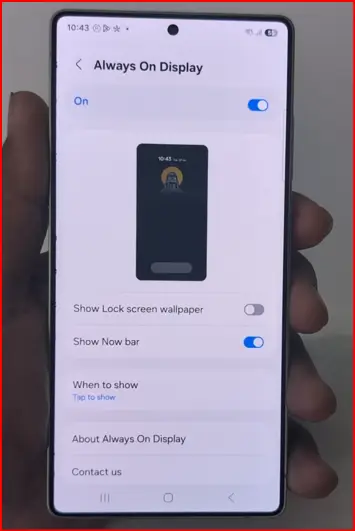
Show lock screen wallpaper: You can see your lock screen wallpaper as Always On display screen.
Erase background: Show the main subjects of the photo only work best with photos that have people or animal as the main subjects.
Show Now Bar: Quickly access your favorite app notifications from the Always on display screen. Toggle on the app button from the available list.
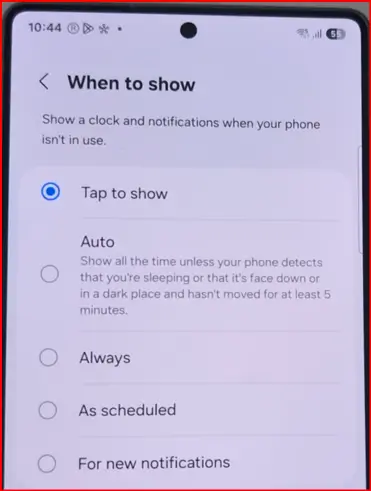
When to Show: Select the option you want to activate always on display to your Samsung Galaxy S25 series from Tap to show/Auto/Always/As scheduled/For new notifications.
Now, lock your Samsung Galaxy device and tap on the screen to view Always on display information you set including Now bar, clock style, notifications, date & time, battery percentage, etc.
How to Turn Off/Disable Always On Display on Samsung Galaxy S25 Series
Go to Settings.
Scroll down and tap on the Lock screen and AOD.
Toggle off the Always on Display button.
Now, when you lock your phone and tap on the screen, you can’t see any information.
And that’s all. Do you use Always on display feature to your Samsung Galaxy devices or use default AOD settings? Please, tell us in the below comment section.