Last Updated on January 29, 2025 by Bestusefultips
By default set Always on Display clock style in your Samsung Galaxy S25 series. In this article, I’ll explain, how to change always on display clock in Samsung S25 Ultra, S25 Plus, S25 Edge, and S25 device. Removed AOD clock style settings in the latest Samsung One UI 7 and One UI 6.1 version devices. You can change clock on Always On Display Samsung S25 series using below-given settings.
Read More:
- How to Change Lock Screen Clock Style in Samsung Galaxy S25 Series
- How to Change Cover Screen Clock Style in Samsung Z Flip Series
How to Change Always On Display Clock Style in Samsung Galaxy S25, S25 Plus, S25 Ultra, S25 Edge: One UI 7
Make sure to enable always on display to your Samsung Galaxy S25 Ultra, and other S25 series. If disable AOD, enable it using the below given steps.
Step 1: Open the App drawer to your Samsung S25 series.
Step 2: Tap the Settings app.
Step 3: Tap Lock screen and AOD.
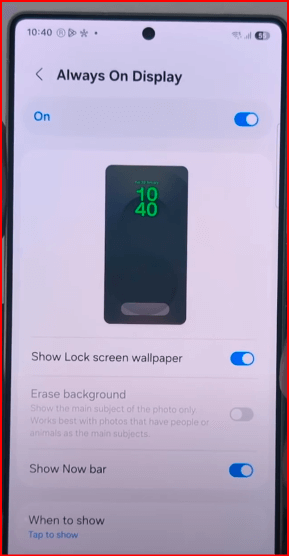
Step 4: Make sure to toggle on Always On Display.
You can’t find AOD clock styles here. To change the Samsung S25 Ultra Always on display clock style or clock image, follow the below-given settings.
Change Clock Style on Samsung S25 Always On Display
Step 1: Tap & hold the blank space on the home screen and tap Themes.
Step 2: Tap AODs from the bottom menu.
Step 3: Tap the Top tab.
Step 4: Tap the Dropdown box and select Free.

Step 5: Tap the AODs image you want to set as clock & image.
Step 6: Tap Download.
Step 7: Tap Apply button.
You can see this pop-up message on the screen: Choose an Always on display style
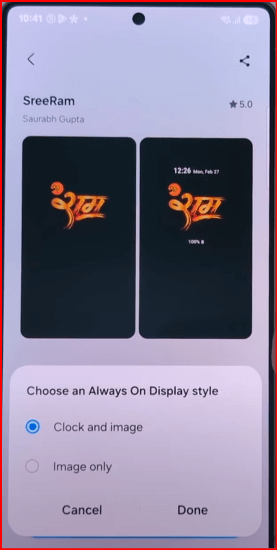
Step 8: Choose from Clock and image or Image only and tap Done.
Step 9: Lock your Samsung Galaxy S25 series and tap on the screen to see the new Always on display clock style image and clock.
And that’s all. Do you use default always on clock style to your Samsung Galaxy devices? Tell us in the below comment section.